

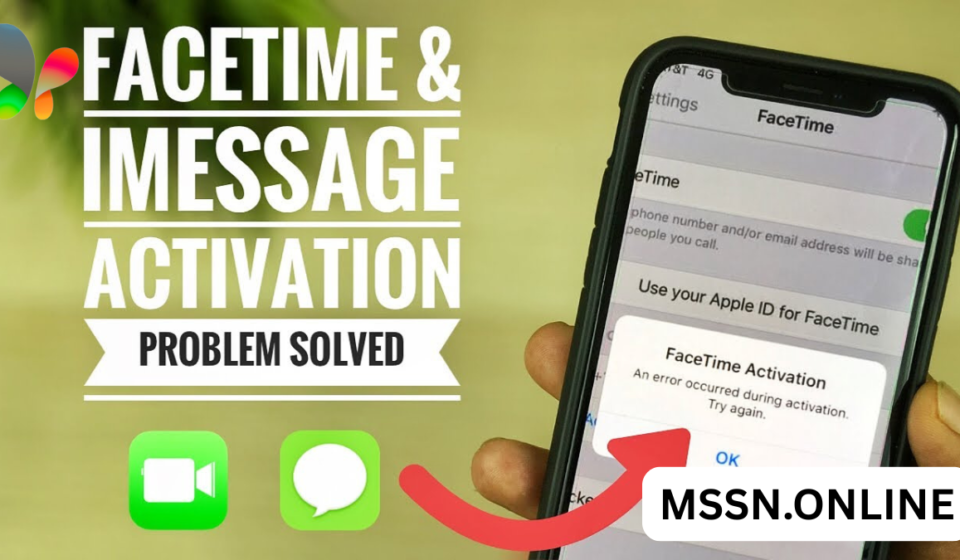

Introduction to Facetime Activation Unsuccessful
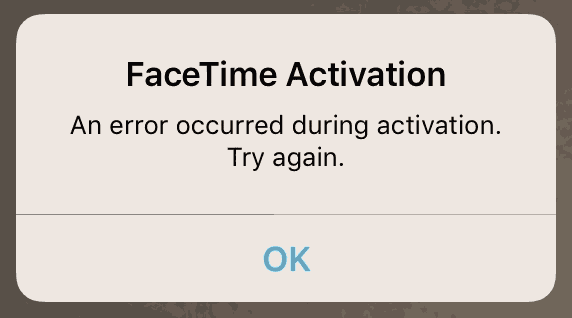
Facetime activation unsuccessful is one of the most frustrating issues Apple users face, especially when setting up a new iPhone or after updating iOS. You expect everything to work smoothly, but instead, you are stuck on an activation screen that just won’t go away. This issue can appear for both FaceTime and iMessage, and it usually comes with errors like “Waiting for activation,” “Activation unsuccessful,” or “Could not sign in.”
The problem may look simple, but it can be caused by many different factors. Sometimes it is your internet connection, sometimes your SIM card, and sometimes even Apple’s own servers. Because there are so many possible causes, users often try random fixes that don’t actually solve the problem. That is why understanding the real reasons behind facetime activation unsuccessful is very important.
In this complete guide, we will break down everything you need to know. From basic fixes to advanced troubleshooting, you will learn step by step how to fix facetime activation unsuccessful without wasting time. This article is written in a simple yet expert tone so you can follow along easily and get your FaceTime working again.
What Does Facetime Activation Unsuccessful Mean
When you see facetime activation unsuccessful, it means your iPhone is unable to verify your phone number or Apple ID with Apple’s servers. FaceTime requires activation before it can be used, and this activation happens in the background using SMS and internet services.
The activation process includes sending a hidden SMS to Apple servers. This SMS is used to verify your phone number and link it with your Apple ID. If this process fails, your device cannot activate FaceTime, and you will see the error message. This is why even a small issue like low balance or SMS restriction can cause facetime activation unsuccessful.
Another important thing to understand is that activation is not instant in all cases. Sometimes it can take a few minutes or even hours depending on your network provider. However, if it takes more than 24 hours, then it is clearly a problem that needs fixing.
Common Causes of Facetime Activation Unsuccessful
There are many reasons why facetime activation unsuccessful appears on your iPhone. One of the most common causes is a poor internet connection. FaceTime requires a stable Wi-Fi or mobile data connection to communicate with Apple servers, and if your connection is weak, activation may fail.
Another major cause is issues with your SIM card or carrier settings. Since FaceTime uses SMS for activation, your SIM must be active, have balance, and support international messaging. If your carrier blocks these messages or your SIM is not properly inserted, you may face facetime activation unsuccessful.
Software-related issues can also play a role. If your iOS version is outdated or has bugs, it can interfere with activation. Similarly, incorrect date and time settings can confuse Apple servers, leading to activation failure. All these factors combined make facetime activation unsuccessful a multi-layered problem.
Check Internet Connection First
The first thing you should always check when facing facetime activation unsuccessful is your internet connection. Without a stable connection, your iPhone cannot reach Apple servers, and activation will fail.
Make sure you are connected to a reliable Wi-Fi network. If Wi-Fi is not available, switch to mobile data and ensure you have a strong signal. Sometimes simply toggling airplane mode on and off can refresh your network and fix temporary glitches.
You should also try switching between Wi-Fi and mobile data to see if one works better than the other. In many cases, users report that facetime activation unsuccessful gets resolved just by changing networks.
Ensure Date and Time Are Correct
One small setting that causes big problems is incorrect date and time. If your device shows the wrong time or timezone, Apple servers may reject the activation request, resulting in facetime activation unsuccessful.
To fix this, go to Settings, then General, and then Date & Time. Turn on “Set Automatically.” This ensures your device syncs with the correct time zone based on your location.
After updating the date and time, restart your iPhone and try activating FaceTime again. This simple fix solves the issue more often than people expect.
Check Apple ID and Sign In Again
Your Apple ID plays a major role in FaceTime activation. If there is an issue with your account, you may see facetime activation unsuccessful even if everything else is working fine.
Go to Settings and check if you are signed in correctly. If you are already signed in, try signing out and then signing back in. This refreshes your connection with Apple servers and often fixes activation issues.
Make sure you are using the correct Apple ID and password. If you recently changed your password, you must update it on your device as well. Otherwise, facetime activation unsuccessful will continue to appear.
Verify Phone Number and SIM Card
Your phone number must be active and properly linked to your SIM card for FaceTime activation. If your SIM is not working correctly, you may encounter facetime activation unsuccessful.
Check if your SIM card is inserted properly. Remove it and reinsert it if needed. Also, make sure your SIM has enough balance to send SMS, especially international messages, as activation SMS may be sent abroad.
If you are using a new SIM, wait for it to fully activate with your carrier. In some cases, contacting your network provider is necessary to fix facetime activation unsuccessful issues related to SIM restrictions.
Restart Your iPhone Properly
Sometimes the solution to facetime activation unsuccessful is as simple as restarting your device. A restart clears temporary bugs and refreshes system processes that may be blocking activation.
Turn off your iPhone completely and wait for a few seconds before turning it back on. Once the device restarts, go to settings and try enabling FaceTime again.
While this may sound basic, it is a powerful fix that often works when other methods fail.
Update iOS to the Latest Version
Running an outdated iOS version can cause many issues, including facetime activation unsuccessful. Apple regularly releases updates to fix bugs and improve system performance.
Go to Settings, then General, and then Software Update. If an update is available, install it. Make sure your device is connected to Wi-Fi and has enough battery before updating.
After updating, try activating FaceTime again. Many users find that facetime activation unsuccessful disappears after updating their device.
Reset Network Settings
If network-related issues are causing facetime activation unsuccessful, resetting network settings can help. This will remove all saved Wi-Fi networks and reset mobile data settings.
Go to Settings, then General, then Transfer or Reset iPhone, and choose Reset Network Settings. After the reset, reconnect to your Wi-Fi and try activating FaceTime again.
This method is especially useful if your network settings were misconfigured or corrupted.
Check Apple Server Status
Sometimes the problem is not on your side at all. Apple servers may be down or experiencing issues, leading to facetime activation unsuccessful errors.
You can check Apple’s system status online to see if FaceTime services are working. If there is a server issue, you will need to wait until Apple fixes it.
In such cases, no amount of troubleshooting on your device will solve the problem, so patience is key.
Turn FaceTime Off and On Again
Another simple but effective method is toggling FaceTime off and on. This forces your device to reinitiate the activation process.
Go to Settings, find FaceTime, and turn it off. Wait for a few seconds, then turn it back on. This refreshes the connection and may resolve facetime activation unsuccessful.
Repeat the same process for iMessage if needed, as both services are connected.
Remove and Reinsert SIM Card
Sometimes your SIM card may not be properly connected, causing facetime activation unsuccessful. Removing and reinserting it can fix the issue.
Turn off your iPhone, remove the SIM card, wait for a few seconds, and insert it again. Turn your device back on and try activating FaceTime.
This simple step can fix hidden SIM-related problems that are not visible otherwise.
Contact Your Carrier for Support
If none of the basic fixes work, your network provider might be the issue. Some carriers block international SMS or have restrictions that cause facetime activation unsuccessful.
Contact your carrier and ask if your SIM supports FaceTime activation. Make sure international messaging is enabled and not restricted.
They can also reset your network settings from their side, which may resolve the issue quickly.
Advanced Fixes for Persistent Issues
If facetime activation unsuccessful continues even after trying all basic methods, you may need advanced solutions. One option is resetting all settings on your iPhone. This does not delete your data but resets system configurations.
Another option is restoring your iPhone using iTunes or Finder. This is a more advanced step and should be done carefully after backing up your data.
In rare cases, hardware issues can also cause activation problems. If you suspect this, visiting an Apple service center is recommended.
Tips to Avoid Facetime Activation Problems in Future
To prevent facetime activation unsuccessful in the future, always keep your iOS updated. Updates fix bugs and improve compatibility with Apple servers.
Make sure your SIM card is active and supports all necessary services. Avoid using unofficial or unsupported carriers that may block activation SMS.
Also, maintain a stable internet connection whenever setting up or activating services. These simple habits can save you from facing facetime activation unsuccessful again.
Final Thoughts on Facetime Activation Unsuccessful
Facetime activation unsuccessful may seem like a complicated issue, but in most cases, it can be fixed بسهولة with the right steps. The key is to identify the root cause instead of trying random solutions.
Start with simple fixes like checking your internet connection, date and time, and Apple ID. If the issue persists, move on to advanced methods like resetting network settings or contacting your carrier.
With patience and the right approach, you can resolve facetime activation unsuccessful and enjoy seamless video calling again.
FAQs
Why does facetime activation unsuccessful keep appearing?
It usually happens بسبب network issues, SIM problems, or incorrect Apple ID settings.
How long does FaceTime activation take?
It normally takes a few minutes but can take up to 24 hours in some cases.
Do I need balance for FaceTime activation?
Yes, your SIM must have balance to send activation SMS.
Can Wi-Fi alone activate FaceTime?
No, SMS verification is also required for activation.
Does resetting network settings fix the issue?
Yes, it often resolves facetime activation unsuccessful caused by network errors.
Is this issue related to iMessage as well?
Yes, both FaceTime and iMessage use similar activation processes.
Can Apple server issues cause activation failure?
Yes, server downtime can lead to facetime activation unsuccessful.
Should I contact my carrier?
Yes, if you suspect SMS or SIM-related restrictions.
Will updating iOS help fix it?
Yes, updates often fix bugs causing activation issues.
Can a faulty SIM cause this problem?
Yes, a damaged or inactive SIM can prevent activation.
Also Read: SAP Users Email List: A Complete Guide for Businesses and Marketers